Introduction
In today’s world of software and product development, speed alone isn’t enough. Shipping fast is easy. Shipping something coherent, extensible, and worth iterating on is not.
That’s where most people misuse v0.
v0 by Vercel is often treated like a magic prompt box: type a sentence, get some UI, move on. That works for demos. It breaks down when you try to build something real with structure, constraints, and evolving requirements.
The problem isn’t v0. It’s how casually it’s used.
Building well with v0 isn’t just about better prompts. It’s about making the right decisions at the right time: choosing the right model, starting from the right context, enforcing consistency, and only using advanced tools like MCPs when they actually add value.
This guide walks through how to use v0 deliberately, as a serious development tool, so you can move from rough intent to a solid MVP without fighting the tool or duct-taping the output.
What is v0?
v0 is an AI powered development platform that turns plain English ideas into production-ready, full-stack web apps in minutes. You describe what you want, and v0 builds the UI, wires up the backend, fixes errors, integrates tools, and deploys directly on Vercel.
This isn’t a mockup generator or a demo toy. It’s an end-to-end builder designed for developers who want to prototype fast, ship MVPs, and scale real features without burning time on boilerplate.
Walkthrough of v0 Chat Area
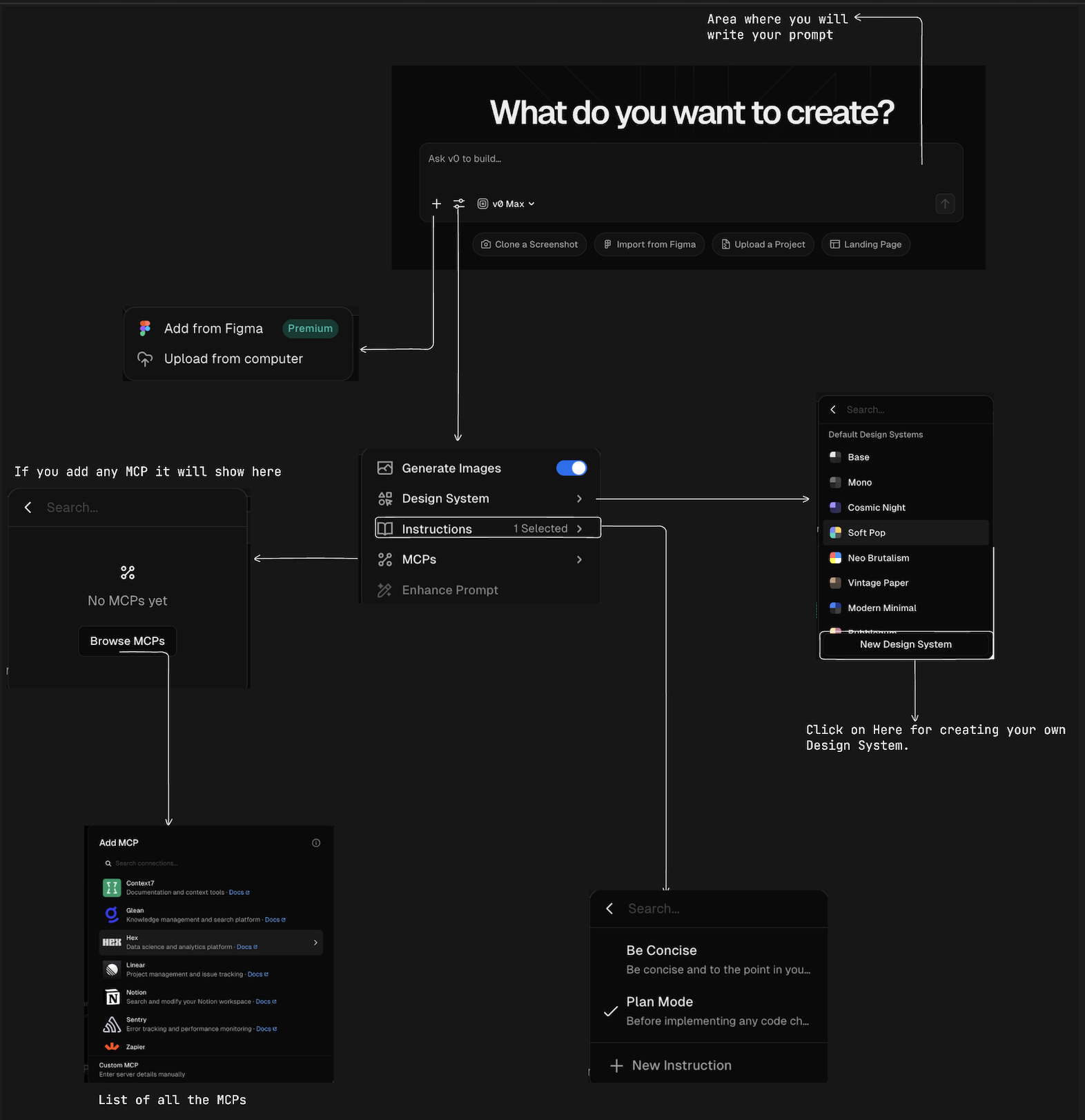
The above diagram gives you a complete overview of the v0 chat area, which is where almost all meaningful work happens. If you’re serious about using v0 beyond surface-level demos, this screen becomes your primary workspace. Everything else—settings pages, deployments, integrations—are secondary. This is the control room.
The Prompt Box: Your Single Source of Truth
At the center, you’ll see the prompt box under the question “Ask v0 to build...”. This is not a casual input field. Think of it as a living specification, not a chat message.
Most people fail here because they treat prompting like creative writing. That’s wrong. v0 doesn’t need clever wording; it needs clarity. If you say “build a dashboard,” you’ll get a dashboard—but it will reflect the model’s assumptions, not your intent. If you say “build a multi-tenant analytics dashboard with role-based access, paginated tables, and CSV export,” you’ve already won half the battle.
You don’t need to be a “prompt engineer.” You need to be specific about:
-
what the user can do
-
what data exists
-
what constraints matter
The better your intent is encoded here, the less you’ll fight the output later.
Context Inputs
Directly below the prompt box, v0 gives you multiple ways to inject existing context instead of starting from zero.
You can clone a screenshot, which is incredibly powerful when you already like an existing UI and want functional parity or iteration. This is not copying—it’s accelerating alignment.
You can import from Figma, which is where v0 stops guessing and starts respecting real design decisions. If you already have a design system or approved mocks, this is the correct entry point. Skipping it and hoping the model “gets it right” is lazy and expensive.
You can also upload an existing project, which is critical for real-world development. Most production work is iterative, not greenfield. v0 can read, reason about, and extend your existing codebase if you give it access.
Model Selection
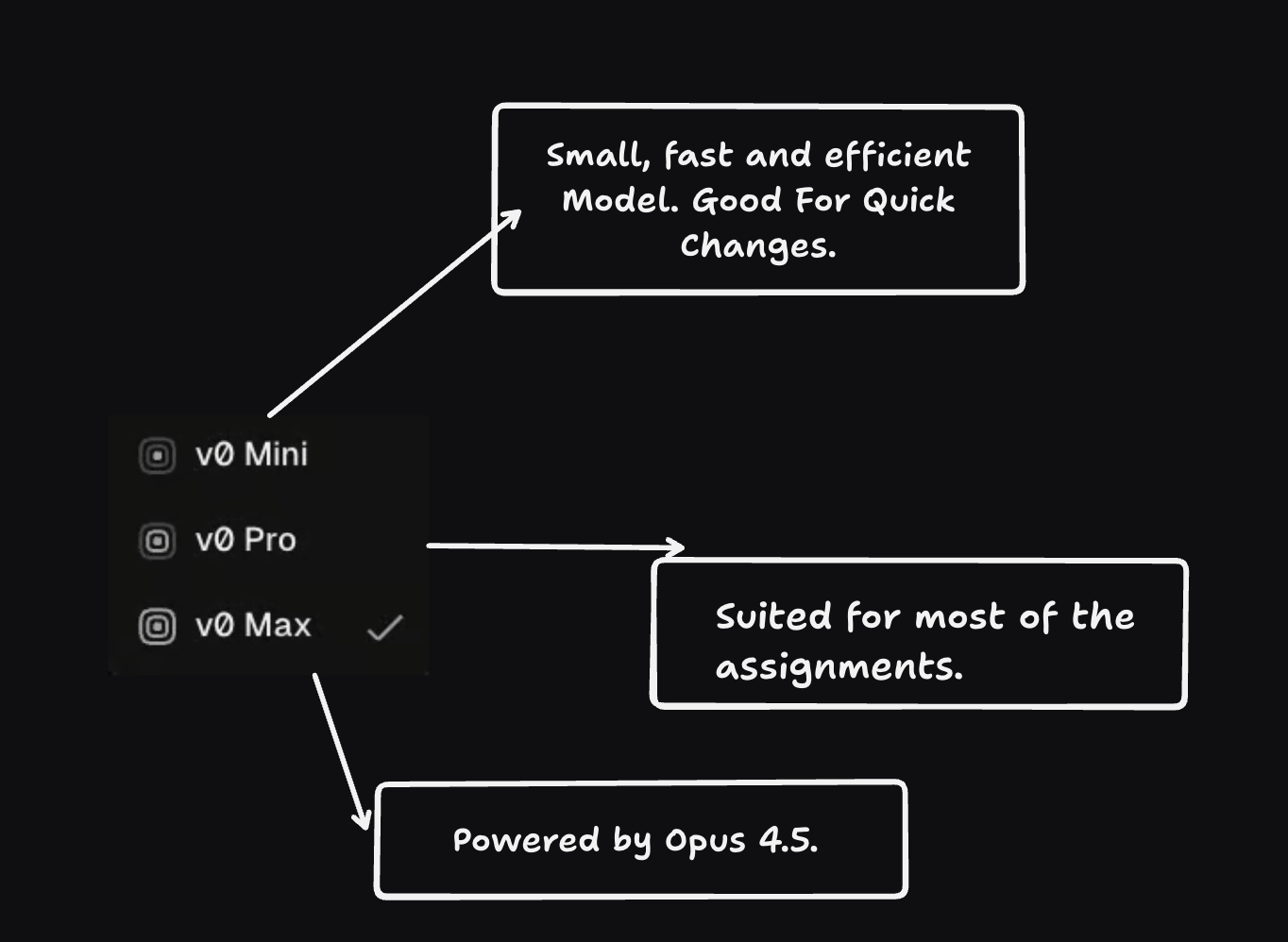
v0 offers multiple models, and choosing the right one is about intent, not preference.
Use v0 Mini for quick experiments and throwaway prototypes where speed and cost matter more than depth. v0 Pro is the default choice for most real projects, it balances performance, reasoning, and cost well. v0 Max should be reserved for complex problems where correctness, architectural decisions, or deeper reasoning actually matter.
A simple rule of thumb: prototype with Max if clarity is critical, iterate with Pro once the direction is clear, and avoid Mini for anything you expect to scale.
Instructions
-
Be Concise: In here, you need to be concise and specific in your prompts to get the best results from
v0Max andv0Pro. If you are not sure then the final result will not be accurate and not according to your expectations. In here, you need to -
Plan Mode: In here, you can give a vague prompt but not to vague and the model will generate a plan for you to check it once. You can use any model for this and then chat with the Model where you and the model will discuss the plan and make changes as needed, until you are satisfied with the plan generated by the model.
Design System
On the right side of the interface, you’ll see a list of Design Systems such as Base, Mono, Soft Pop, Neo Brutalism, and others. These are not themes in the casual sense—they define typography, spacing, color usage, and component styling rules.
If you don’t select a design system, v0 will invent one on the fly. That invention may look good initially, but it may not be consistent across the entire app. Selecting or creating a design system tells v0 how to make consistent decisions across the entire app.
The New Design System option is where serious projects begin. Defining your own system ensures that future iterations don’t drift visually or structurally. Skipping this step is acceptable for demos, but risky for anything meant to grow.
MCPs
So far, everything we’ve discussed lives inside the v0 chat. MCPs are where v0 breaks out of that box.
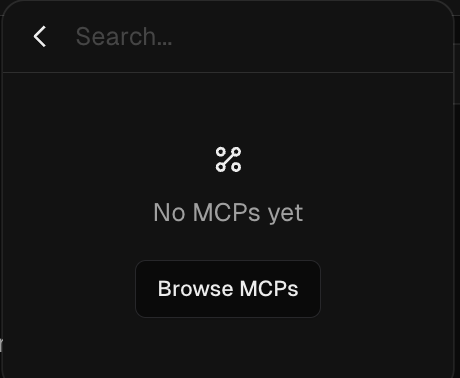
MCPs (Model Context Protocol servers) allow v0 to connect to external tools, data sources, and services so it can reason with real information instead of just what you type into the prompt. This is what turns v0 from a smart generator into a context-aware assistant that actually understands your workflow.
At a high level, MCPs let v0:
- access external documentation and knowledge bases
- interact with tools like Notion, Linear, Sentry, Zapier, etc.
- fetch structured data instead of guessing
- operate with awareness of your existing systems
If your project depends on anything outside the chat window—and most real projects do—MCPs are how you bridge that gap.
Adding an MCP Server
When you click Add MCP, you’ll see a list of available integrations such as Context7, Glean, Linear, Notion, Sentry, and Zapier. These are pre-built MCP servers designed to solve specific problems like documentation lookup, project tracking, error monitoring, or automation.
You also have the option to add a Custom MCP, where you manually provide:
-
a name
-
a server URL
-
an authentication method
This is useful when you want to connect an internal tool or a self-hosted MCP server.
Authentication Modes
When configuring an MCP, you’ll be asked to choose an authentication method. This is not just setup boilerplate; it defines what v0 is allowed to do.
You’ll typically see options like:
None – only suitable for public, read-only endpoints
-
Bearer Token – common for APIs and internal services
-
Custom Headers – useful for API keys or proprietary auth
-
OAuth – the safest and most common option for tools like Notion
OAuth-based MCPs redirect you to the provider to authorize access. This ensures v0 only gets the permissions you explicitly grant. For tools that contain important or sensitive data, OAuth is the correct choice.
What MCPs Enable in Real Usage
Once an MCP is connected, v0 stops guessing and starts asking the right system: with a Notion MCP it can search, read, and update pages in your workspace; with Linear it can understand open issues, project state, and even draft tickets; with Context7 or Glean it can answer questions grounded in your actual documentation; and with Sentry it can reason about real production errors instead of hypothetical ones. This changes how you prompt — instead of pasting long context blocks you can say things like “Update the Notion design doc based on this new API flow” and v0 already knows where to look. That’s the real power of MCPs: less prompt overhead, more accuracy.
Enhance Prompt
Enhance Prompt is a hidden gem that’s a mirror for your intent. When you use it, v0 rewrites your prompt into what it understands you’re asking for. If something important is missing in the enhanced version, it was missing in your original prompt too. This makes it a great sanity check before submitting: write your prompt, enhance it, read it carefully, and fix your original input if the intent isn’t captured correctly. Use it to validate clarity, not just wording. Clear instructions beat clever phrasing every time. This alone solved 90% of the issues you may encounter with the generation.
Community Templates
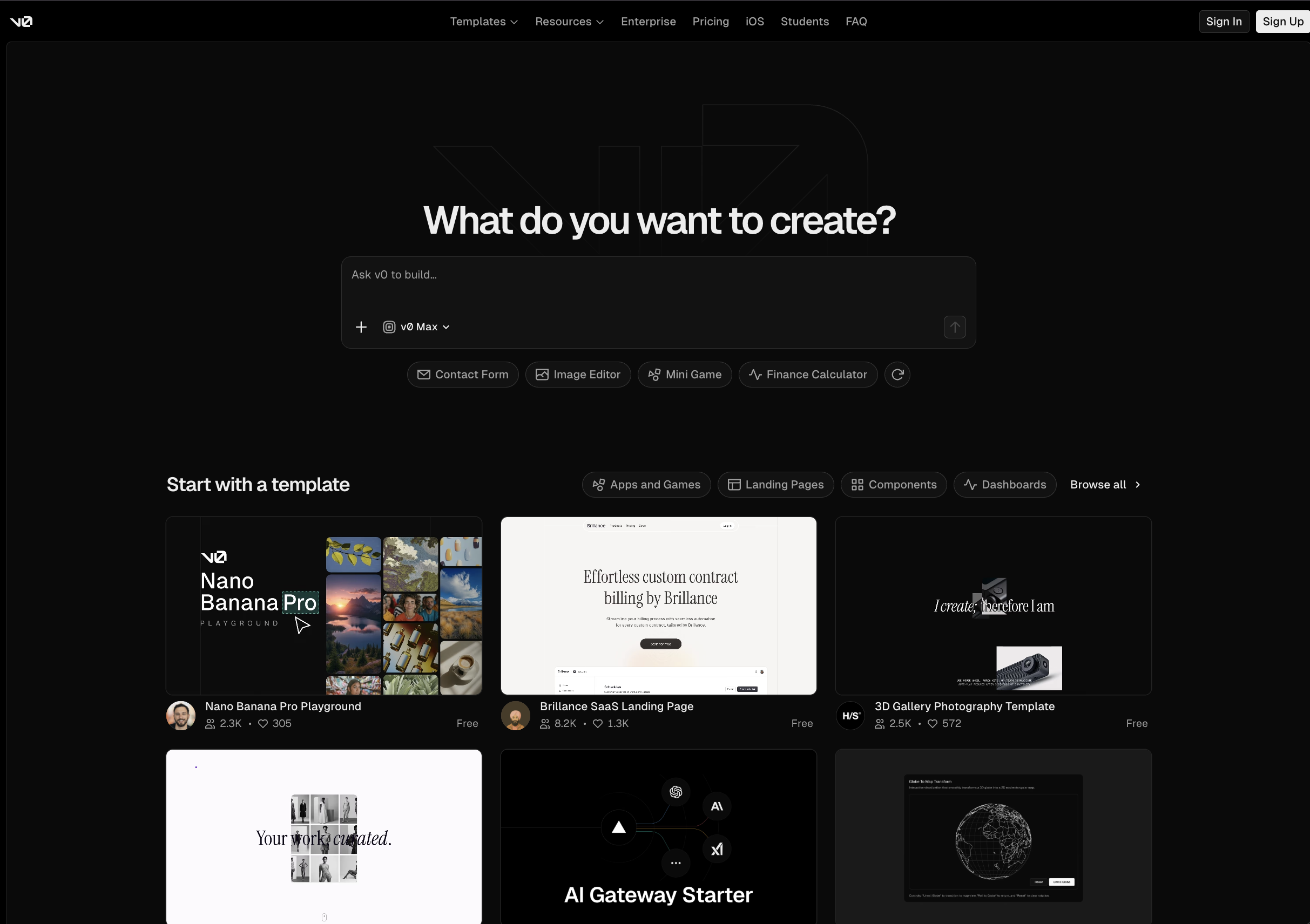
Now in the Home Page, you will see community templates. These are pre built templates built by the community for the community.
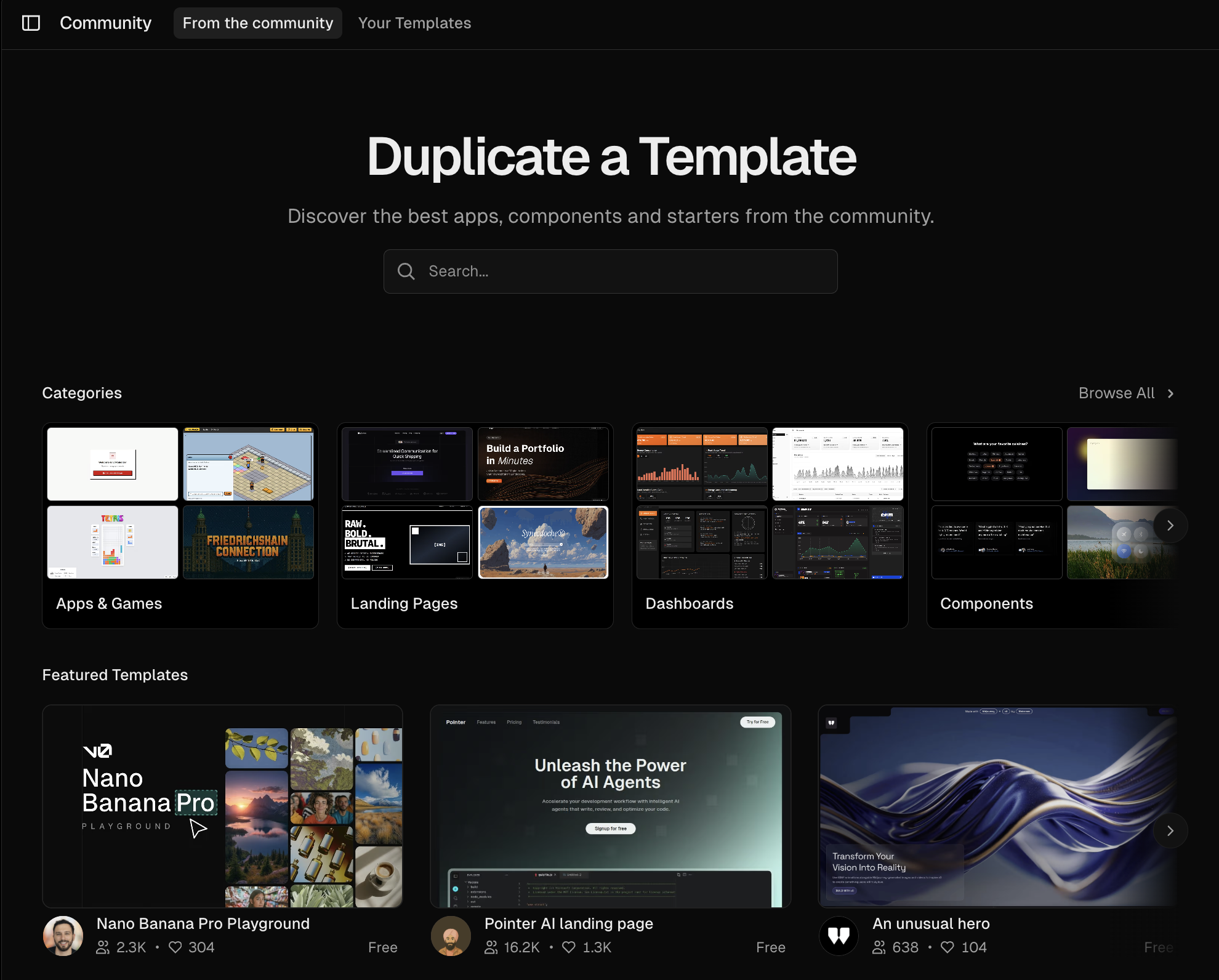
The real value of community templates isn’t saving time on typing, it’s skipping early decision making. Instead of starting from a blank prompt and hoping you describe everything correctly, you can pick a template that’s already close to what you want and iterate from there. This drastically reduces prompt ambiguity and gives v0 a concrete foundation to build on.
Use community templates when:
-
your project resembles a common pattern (dashboards, SaaS apps, landing pages)
-
you want to understand how others structure prompts and flows
-
you’d rather refine than invent from scratch
You can also contribute your own templates back to the community. If you’ve built something reusable, sharing it helps others and often improves your own thinking by forcing you to generalize your solution.
How I write my prompts
I usually start with a clear goal in mind and start with Plan Mode. For the template, you can check below:
Build a [type of product] for [target user] that solves [core problem]. The product should include core features such as [primary feature 1], [primary feature 2], and [primary feature 3], with clear and intuitive user interactions where users can [key action] and the system responds with [expected behavior]. The UI and UX should follow [design preference or layout rule] and include [interaction or animation requirement] where appropriate. If editing or configuration is required, users should be able to [edit / customize / manage] with real-time preview or feedback. Optionally, the implementation can use [framework / platform / APIs], with a modular and extensible architecture. Explicitly exclude [feature you don’t want]. Start by outlining a clear plan and architecture, then implement a solid MVP.
For Feedback or Saying Problems
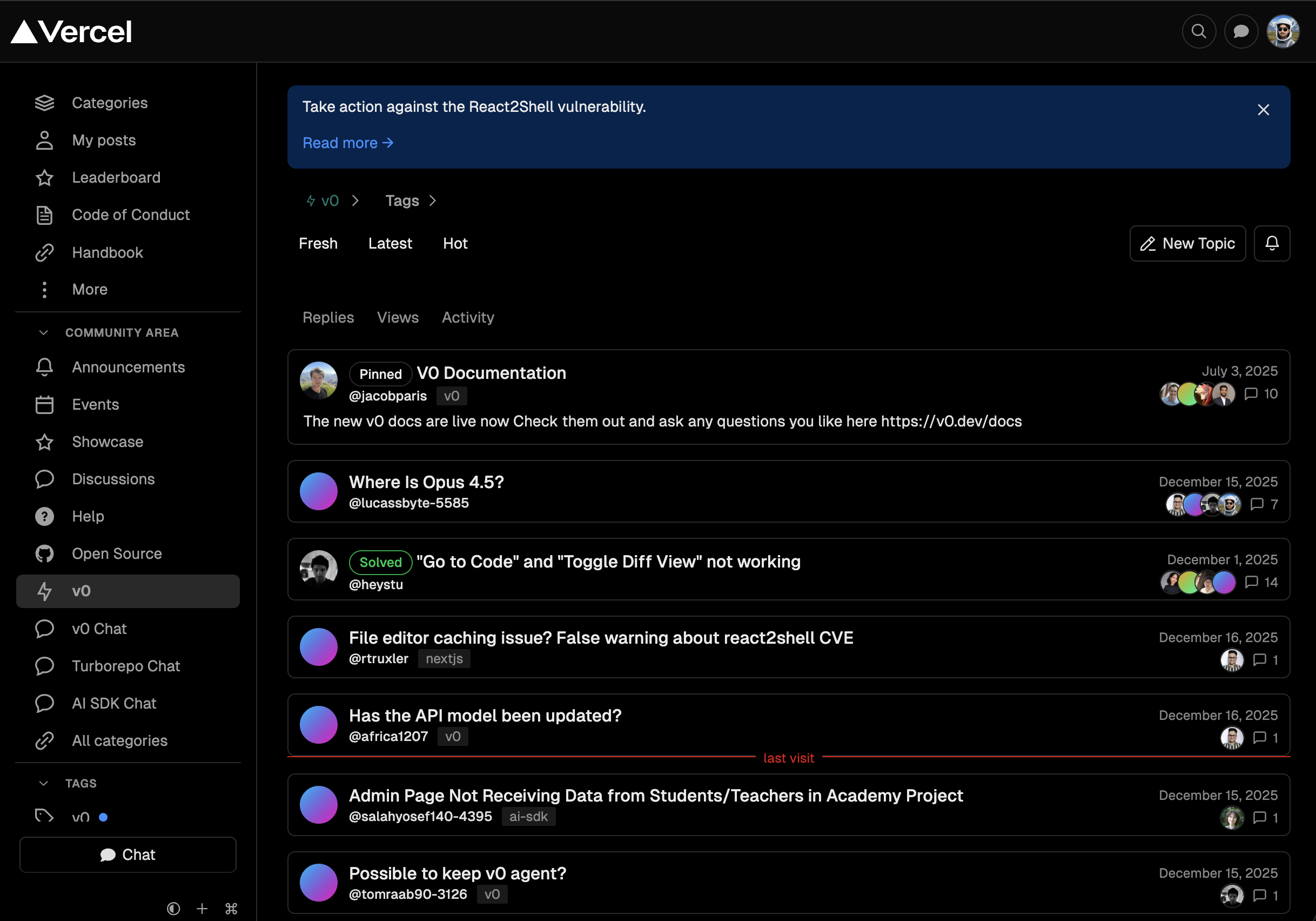
If you run into issues or want to share feedback, v0 makes this straightforward. You can click the “Feedback” button in the top-right corner of the interface to open a form where you can describe the problem, share context, and submit suggestions directly to the team.
If you’re looking for help, guidance, or discussion rather than reporting a bug, the Vercel Community is the right place to go. The v0 section of the community is active and useful for asking questions, sharing workflows, and learning how others are using v0 in real projects.
Conclusion
v0 is not about clever prompts or fancy wording—it’s about clarity of intent. Every feature you’ve seen, from model selection and instructions to MCPs, Enhance Prompt, and community templates, exists to help you communicate what you actually want with less friction and fewer assumptions.
If you treat v0 like a magic box, you’ll get inconsistent results. If you treat it like a capable engineer who needs precise instructions, it becomes a serious force multiplier. Start specific, use the right model, validate your intent with Enhance Prompt, lean on templates when patterns already exist, and only add MCPs when real context is required.
Cooking with v0 isn’t about throwing everything into the pan at once. It’s about choosing the right ingredients, in the right order, with intent. Do that well, and v0 won’t just generate code—it will help you build things that actually last.